
May 17, 2026
D-Bus Introspection in Practice: Exploring systemd from the Command Line
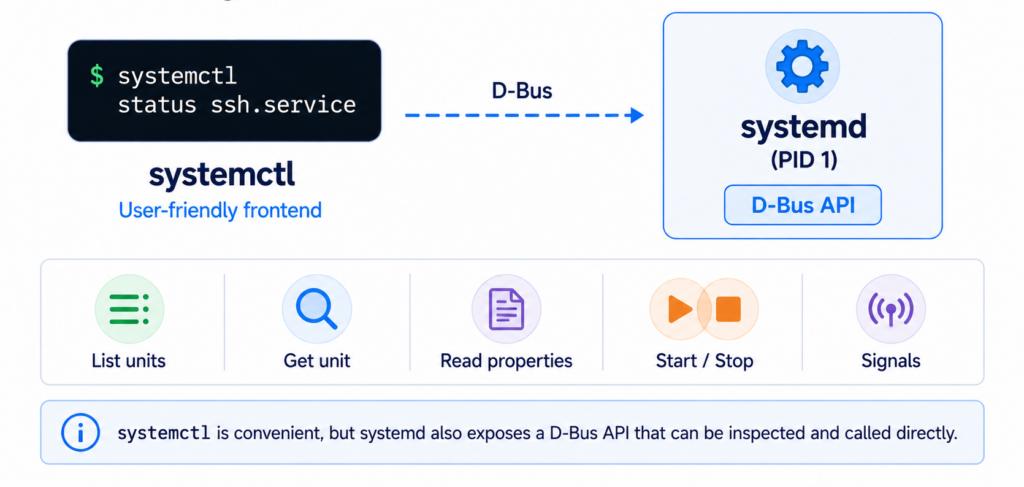
Most of the time, we talk to systemd through systemctl. It is convenient, readable and usually exactly what you want.
But systemctl is only one layer above the real API. Under the hood, systemd exposes a D-Bus interface. You can inspect that interface, read properties from it and even call methods directly from the command line.
That is useful when you are debugging an embedded Linux device and want to understand what is really available on the bus. Not what the documentation says. Not what you think is there. What the running system actually exposes.
In this post, we will go one layer below systemctl and look at systemd directly over D-Bus using busctl and dbus-send.
💡 Tip
systemctl is convenient at the command line, but application code should usually talk to systemd through D-Bus instead of spawning systemctl.
ⓘ Note
This post builds on top of previous article: How D-Bus works in Embedded Linux
The systemd D-Bus entry point
systemd exposes its manager object on the system bus. These are the four coordinates we need:
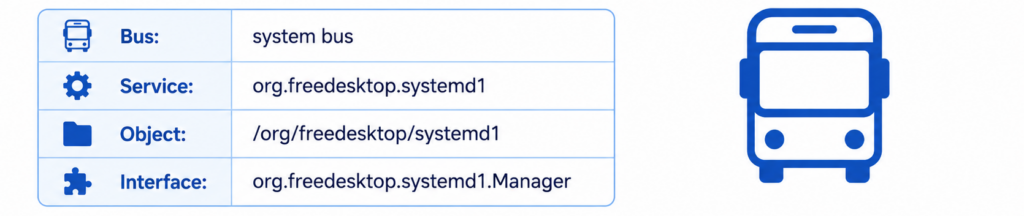
This follows the same D-Bus model as before: service name + object path + interface + method
The service name tells D-Bus where the message should go. The object path tells systemd which object we want to address. The interface tells us which API contract we want to use. The method is the operation we call.
First, check if systemd is visible on the bus:
busctl list | grep systemdYou can ask the bus for all registered names with dbus-send too:
dbus-send \
  --system \
  --print-reply \
  --dest=org.freedesktop.DBus \
  /org/freedesktop/DBus \
  org.freedesktop.DBus.ListNames
💡 Tip
The important part is --system. systemd is not on your user session bus. It is a system service, so it lives on the system bus.
ⓘ Note
For most embedded Linux debugging, the system bus is the one you care about. systemd, NetworkManager, BlueZ, ModemManager and many product-specific daemons usually expose APIs there.
Introspecting the manager object
Introspection means asking a D-Bus object what it exposes. For systemd, start with the manager object: /org/freedesktop/systemd1
With busctl, this is easy to read:
busctl introspect \
  org.freedesktop.systemd1 \
  /org/freedesktop/systemd1
You should see several interfaces. Some are standard D-Bus interfaces. One is the systemd manager interface:
org.freedesktop.DBus.Introspectable
org.freedesktop.DBus.Properties
org.freedesktop.DBus.Peer
org.freedesktop.systemd1.Manager
The interesting one here is: org.freedesktop.systemd1.Manager
This is where methods such as ListUnits, GetUnit, StartUnit, StopUnit and RestartUnit are exposed. You can also call the introspection method directly with dbus-send:
dbus-send \
  --system \
  --print-reply \
  --dest=org.freedesktop.systemd1 \
  /org/freedesktop/systemd1 \
  org.freedesktop.DBus.Introspectable.Introspect
The output is less friendly than busctl introspect, but it shows an important point: introspection is not magic. It is just another D-Bus method call.

Calling a safe method: ListUnits
A good first method to call is ListUnits. It does not change system state. It only asks systemd to return information about currently loaded units.
With busctl:
busctl call \
  org.freedesktop.systemd1 \
  /org/freedesktop/systemd1 \
  org.freedesktop.systemd1.Manager \
  ListUnits
With dbus-send:
dbus-send \
  --system \
  --print-reply \
  --dest=org.freedesktop.systemd1 \
  /org/freedesktop/systemd1 \
  org.freedesktop.systemd1.Manager.ListUnits
The output is not as pretty as systemctl list-units. That is expected. Here we are not using the human-friendly frontend. We are looking at the raw API.
For quick debugging, you can still use normal shell tools:
dbus-send \
  --system \
  --print-reply \
  --dest=org.freedesktop.systemd1 \
  /org/freedesktop/systemd1 \
  org.freedesktop.systemd1.Manager.ListUnits | grep ssh

         string "ssh.service"
         object path "/org/freedesktop/systemd1/unit/ssh_2eservice"
💡 Tip
When exploring an unknown D-Bus API, start with read-only methods and properties. Do not begin by calling methods that change system state.
Getting a unit object with GetUnit
In the systemd D-Bus API, a unit is represented as its own object. So if we want to inspect ssh.service, we first ask systemd for the object path of that unit.
 dbus-send \
  --system \
  --print-reply \
  --dest=org.freedesktop.systemd1 \
  /org/freedesktop/systemd1 \
  org.freedesktop.systemd1.Manager.GetUnit \
  string:"ssh.service"

method return time=1779018852.934374 sender=:1.0 -> destination=:1.28 serial=4282 reply_serial=2
   object path "/org/freedesktop/systemd1/unit/ssh_2eservice"
On some systems, the service may be called sshd.service instead.
The response contains an object path: object path "/org/freedesktop/systemd1/unit/ssh_2eservice". This is a useful detail. GetUnit does not return the state of the unit. It returns the D-Bus object path that represents the unit. Now we can inspect that object directly.
💡 Tip
On some systems:
Reading properties from a unit
busctl introspect \
  org.freedesktop.systemd1 \
  /org/freedesktop/systemd1/unit/ssh_2eservice \
  org.freedesktop.systemd1.Unit \
  --no-pager \
  | grep -E 'Id|Description|LoadState|ActiveState|SubState|FragmentPath'
ⓘ Note
The final grep -E is only there to keep the output readable. busctl introspect can print a lot of methods, properties and signals, so here we filter the output to the few unit properties we want to discuss.
This interface exposes useful properties, for example:
.ActiveState                     property  s         "active"                                 emits-change
.Description                     property  s         "OpenBSD Secure Shell server"            const
.FragmentPath                    property  s         "/lib/systemd/system/ssh.service"        const
.Id                              property  s         "ssh.service"                            const
.LoadState                       property  s         "loaded"                                 const
.SubState                        property  s         "running"                                emits-change
Now we can read individual properties directly with busctl get-property.
For example, read ActiveState:
busctl get-property \
  org.freedesktop.systemd1 \
  /org/freedesktop/systemd1/unit/ssh_2eservice \
  org.freedesktop.systemd1.Unit \
  ActiveState
The output may look like this:
s "active"The first letter is the D-Bus type signature. Here s means string, and "active" is the current value.
You can read SubState the same way:
busctl get-property \
  org.freedesktop.systemd1 \
  /org/freedesktop/systemd1/unit/ssh_2eservice \
  org.freedesktop.systemd1.Unit \
  SubState
Example output:
s "running"You can also check whether the unit was loaded correctly:
busctl get-property \
  org.freedesktop.systemd1 \
  /org/freedesktop/systemd1/unit/ssh_2eservice \
  org.freedesktop.systemd1.Unit \
  LoadState
Example output:
s "loaded"💡 Tip
Properties are often the best starting point. Before calling StartUnit, StopUnit or RestartUnit, check what systemd already thinks about the unit through ActiveState, SubState and LoadState.
Calling methods that change state
⚠ Warning
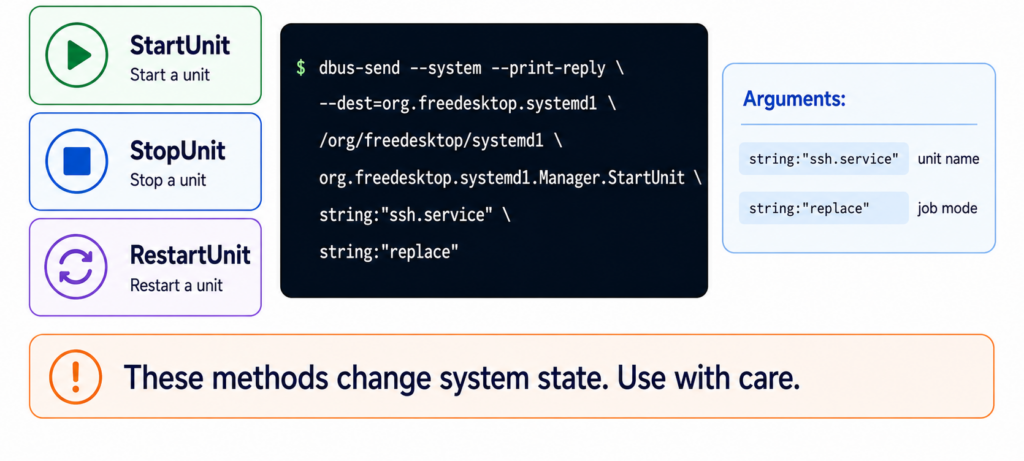
The next commands change system state. Run them only on a development machine, test device or with a service that is safe to start and stop.
Starting, stopping or restarting system services may require elevated privileges. If you run the command as an unprivileged user, systemd may reject it with org.freedesktop.DBus.Error.InteractiveAuthorizationRequired. On a development machine, run the command with sudo or choose a test unit that your user is allowed to control.
To start a unit through D-Bus, call StartUnit on the systemd manager interface:
dbus-send \
  --system \
  --print-reply \
  --dest=org.freedesktop.systemd1 \
  /org/freedesktop/systemd1 \
  org.freedesktop.systemd1.Manager.StartUnit \
  string:"ssh.service" \
  string:"replace"
The arguments are simple:
string:"ssh.service"   unit name
string:"replace"       job mode
To stop the unit:
dbus-send \
  --system \
  --print-reply \
  --dest=org.freedesktop.systemd1 \
  /org/freedesktop/systemd1 \
  org.freedesktop.systemd1.Manager.StopUnit \
  string:"ssh.service" \
  string:"replace"
To restart it:
dbus-send \
  --system \
  --print-reply \
  --dest=org.freedesktop.systemd1 \
  /org/freedesktop/systemd1 \
  org.freedesktop.systemd1.Manager.RestartUnit \
  string:"ssh.service" \
  string:"replace"
This is the same idea as:
systemctl start ssh.service
systemctl stop ssh.service
systemctl restart ssh.service
The difference is that now we are calling the D-Bus API directly instead of using the systemctl frontend.
Watching systemd signals
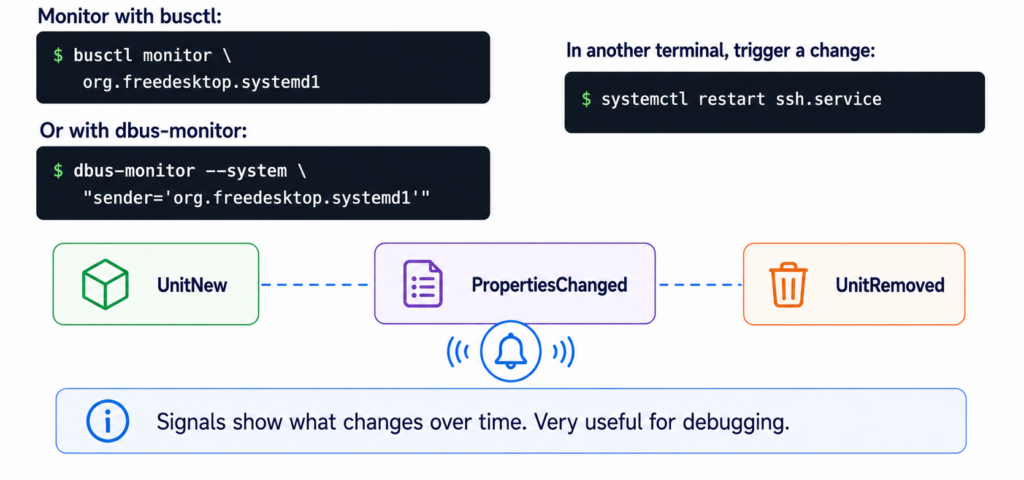
D-Bus is not only method calls. Services can also emit signals when something changes.
systemd emits signals when units are added, removed or changed. You can watch those messages with busctl:
busctl monitor org.freedesktop.systemd1Or with dbus-monitor:
dbus-monitor \
  --system \
  "sender='org.freedesktop.systemd1'"
Then trigger a change from another terminal:
systemctl restart ssh.serviceThis is useful when debugging startup ordering, failing services, watchdog restarts or unexpected unit state changes.
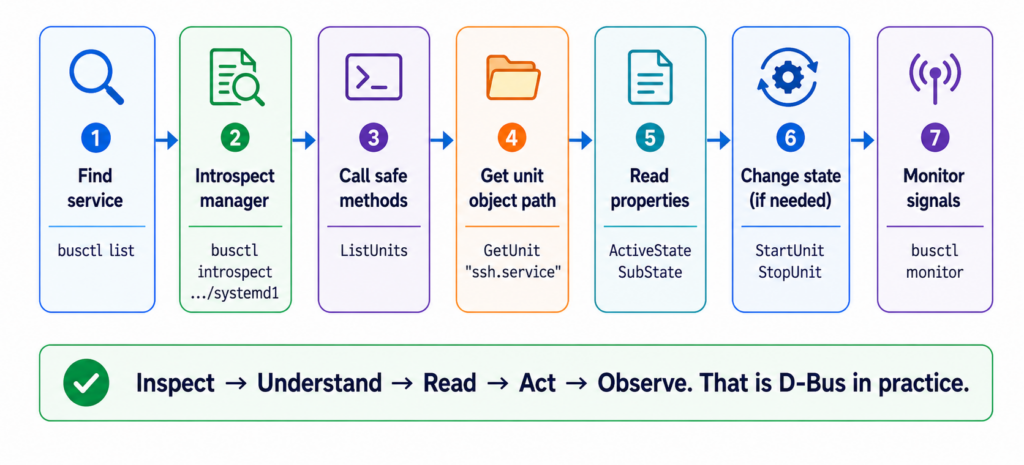
A practical workflow
When exploring a D-Bus API, do not guess. Walk through it step by step.
- Find the service name with
busctl list. - Introspect the manager object with
busctl introspect org.freedesktop.systemd1 /org/freedesktop/systemd1. - Find the interface you need, usually
org.freedesktop.systemd1.Manager. - Call safe read-only methods first, such as
ListUnits. - Use
GetUnitto obtain a unit object path. - Introspect the unit object.
- Read properties such as
ActiveState,SubStateandLoadState. - Call state-changing methods carefully.
- Monitor signals while changing state.
This workflow works well beyond systemd. You can use the same approach with BlueZ, NetworkManager, ModemManager and your own embedded services.
Common mistakes
A few small mistakes can make D-Bus debugging more confusing than it needs to be.
- Using the wrong bus. systemd lives on the system bus, so use
--system. Do not use--sessionand expect to reach the system manager. - Mixing up service, object, interface and method. These strings look similar, but they are different parts of the call.
- Guessing escaped unit paths. A unit name such as
ssh.servicemay become/org/freedesktop/systemd1/unit/ssh_2eservice. UseGetUnitand let systemd return the correct object path. - Changing state before reading state. Before calling
StartUnit,StopUnitorRestartUnit, checkActiveState,SubStateandLoadStatefirst.
💡 Tip
When something fails, check the bus, object path and permissions first. Many D-Bus problems are not caused by the method itself, but by calling it on the wrong bus, wrong object or without the required privileges.
The key idea
If you remember only one thing, remember this:
💡 Tip
D-Bus introspection lets you ask a running service what it exposes, then call that API step by step instead of guessing.
For systemd, start at org.freedesktop.systemd1, inspect /org/freedesktop/systemd1, use the manager interface, get a unit object path and read properties before changing anything.
Once this workflow becomes familiar, D-Bus stops looking like a hidden mechanism behind systemctl. It becomes a normal local API that you can inspect, call and monitor from the Linux command line.